How Do I Manage Email or In-App Notifications in Breakcold?

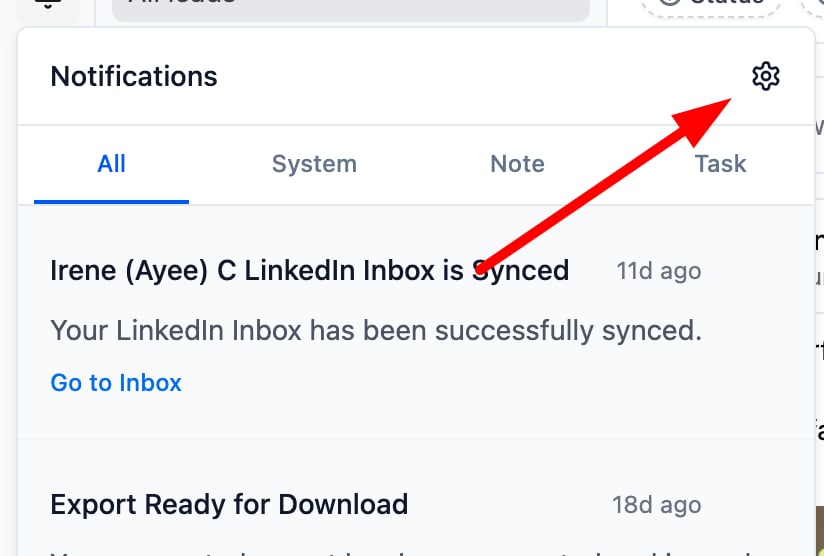
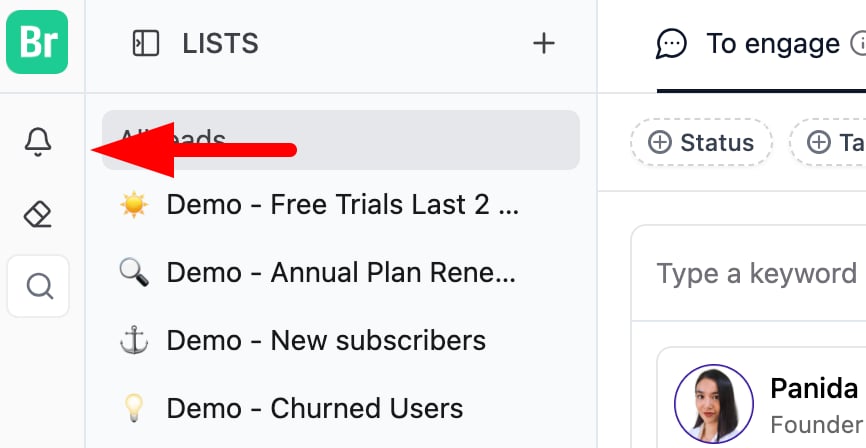
Step 1: Open Notification Settings Click the Bell icon How Do I Manage Email or In-App Notifications in Breakcold? screenshot 1 (usually located at the top left of the screen). How Do I Manage Email or In-App Notifications in Breakcold? screenshot 2 Then, click the Cogwheel icon How Do I Manage Email or In-App Notifications in Breakcold? screenshot 3 to open the notification settings. How Do I Manage Email or In-App Notifications in Breakcold? screenshot 4 Step 2: Navigate to Global Preferences Once in the Notification Settings, go to Global Preferences. Here, you’ll find two sections:
  • Delivery Type
  • Notification Type
Step 3: Choose Notification Types You can enable or disable notifications for various activities, including:
  • Task updates
  • Note replies or tags System alerts (e.g., import complete, authentication failed)
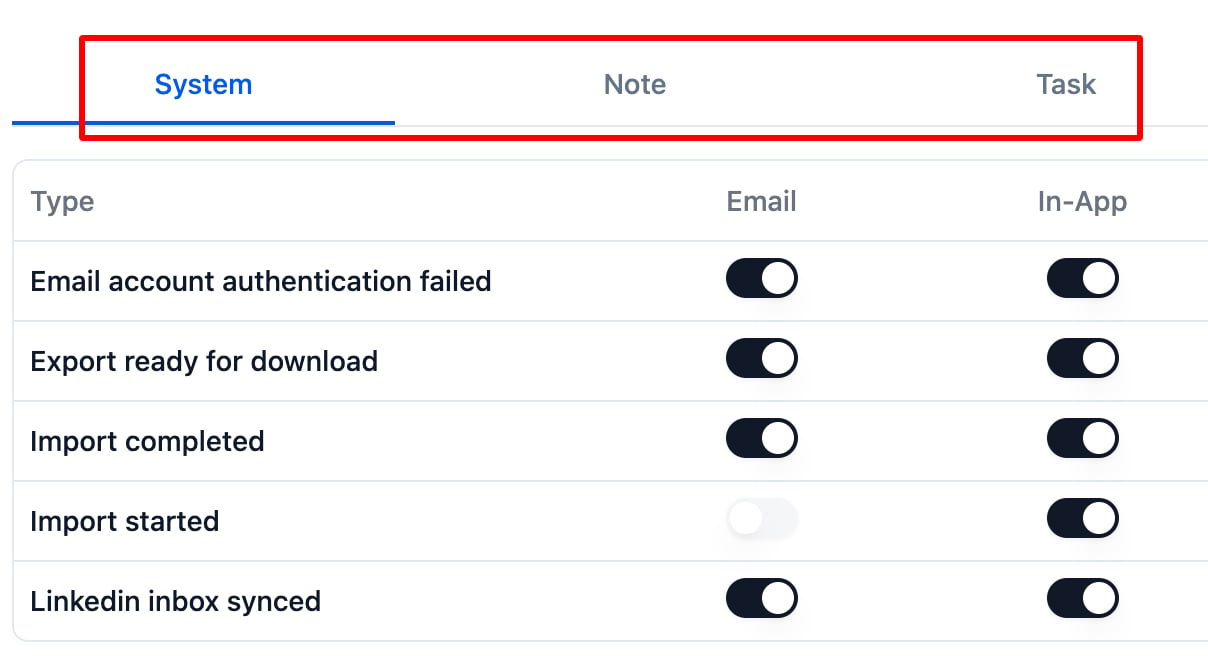
How Do I Manage Email or In-App Notifications in Breakcold? screenshot 5 Step 4: Select Your Delivery Method For each notification type, select how you want to receive alerts:
  • In-App – Notifications appear directly inside Breakcold. Email – Notifications are sent to your inbox.
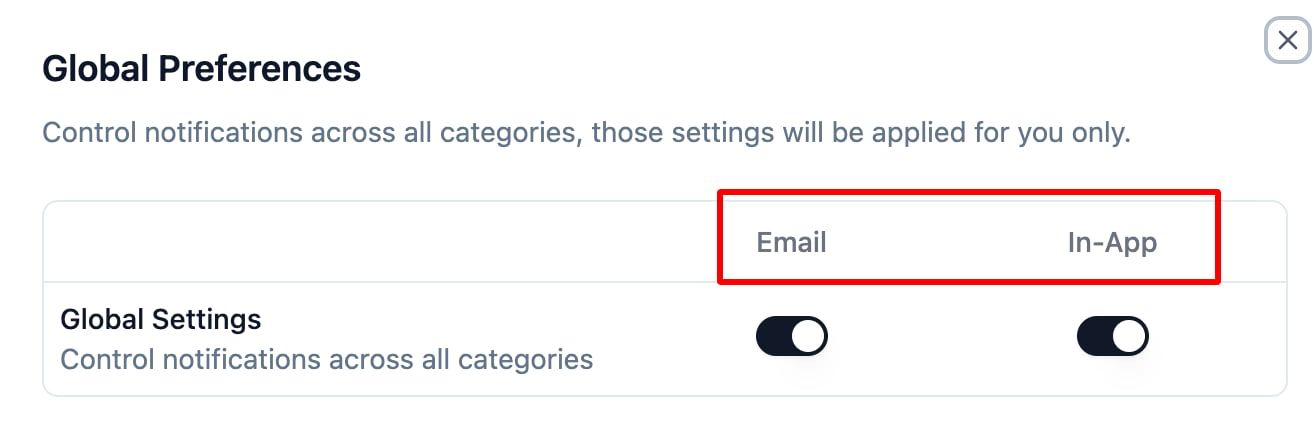
How Do I Manage Email or In-App Notifications in Breakcold? screenshot 6 Step 5: Adjust Your Preferences Use the toggle switch next to each notification type to turn it on or off based on your preference.

💡 Tips for Managing Notifications

  • Tip 1: Receiving too many emails? Disable email alerts for less urgent updates and rely on in-app notifications.
  • Tip 2: Keep system alerts enabled so you don’t miss critical events.
  • Tip 3: Not seeing any notifications? Double-check your email address and check your spam/junk folder.
  • Tip 4: Prefer in-app if you’re actively using Breakcold. Use email if you check in occasionally.

👉 Learn More

Click here to read the full guide on notifications and best practices.