> ## Documentation Index
> Fetch the complete documentation index at: https://developer.breakcold.com/llms.txt
> Use this file to discover all available pages before exploring further.
# How Do I Mark All Notifications as Read?
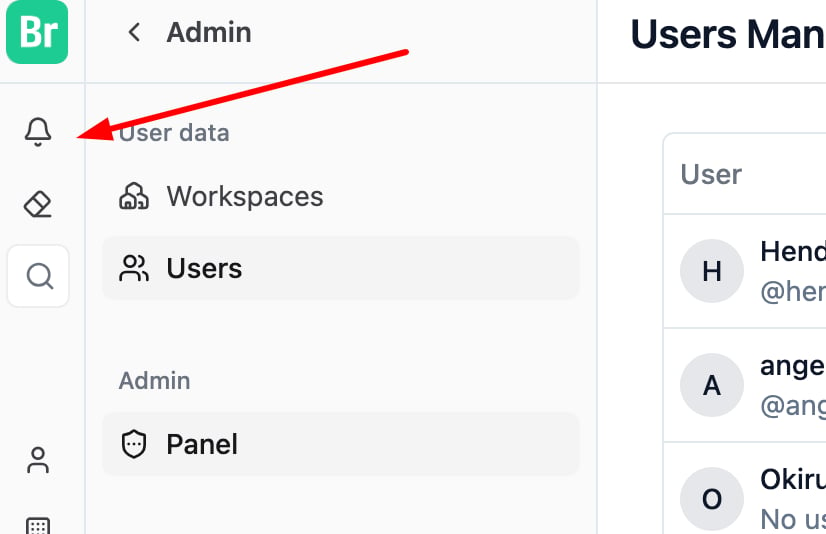
> Step 1: Click the Bell icon to open your notification center.
## Step 1: Click the Bell icon to open your notification center.
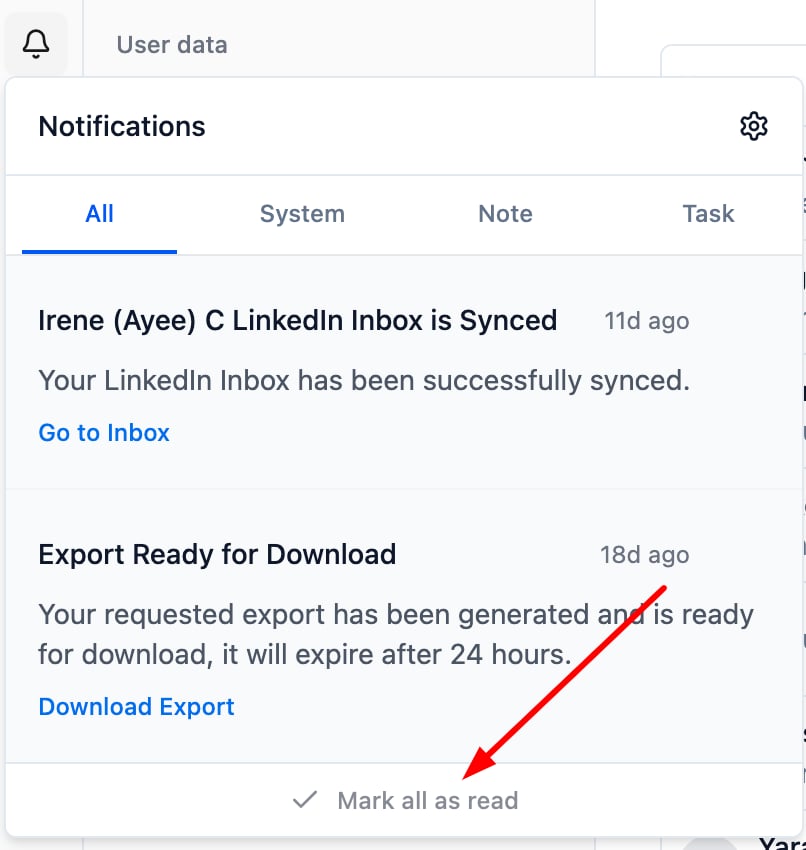
 ## Step 2: Click “Mark All as Read” to clear all unread notifications at once.
 ***
## 💡 Tips for Managing Notifications
* **Use “Mark All as Read” regularly** to maintain a clean workspace and reduce visual clutter.
* **Review system alerts first** before clearing everything to avoid missing important updates.
* **Archive less relevant notifications** after marking them read for better organization.
* **Develop a weekly habit** of reviewing and clearing notifications, especially in busy teams.
* **If notifications don’t clear**, try refreshing the page, logging out, or clearing your browser cache.
***
## 💡 Tips for Managing Notifications
* **Use “Mark All as Read” regularly** to maintain a clean workspace and reduce visual clutter.
* **Review system alerts first** before clearing everything to avoid missing important updates.
* **Archive less relevant notifications** after marking them read for better organization.
* **Develop a weekly habit** of reviewing and clearing notifications, especially in busy teams.
* **If notifications don’t clear**, try refreshing the page, logging out, or clearing your browser cache.