> ## Documentation Index
> Fetch the complete documentation index at: https://developer.breakcold.com/llms.txt
> Use this file to discover all available pages before exploring further.
# How to Use the Sales Pipeline
> Quick Summary You can create unlimited sales pipelines each list = one pipeline Leads can be added as People or Companies A single lead can be in multiple pipelines at once The...
## Quick Summary
* You can create **unlimited sales pipelines** each list = one pipeline
* Leads can be added as **People** or **Companies**
* A single lead can be in **multiple pipelines at once**
* The **"All Leads"** view also has its own pipeline
💡 **Tip 1:** Try to separate companies and people into different pipelines
💡 **Tip 2:** Keep it simple with 3–4 pipelines (e.g., Customers, Prospects, Partnerships, Network)
***
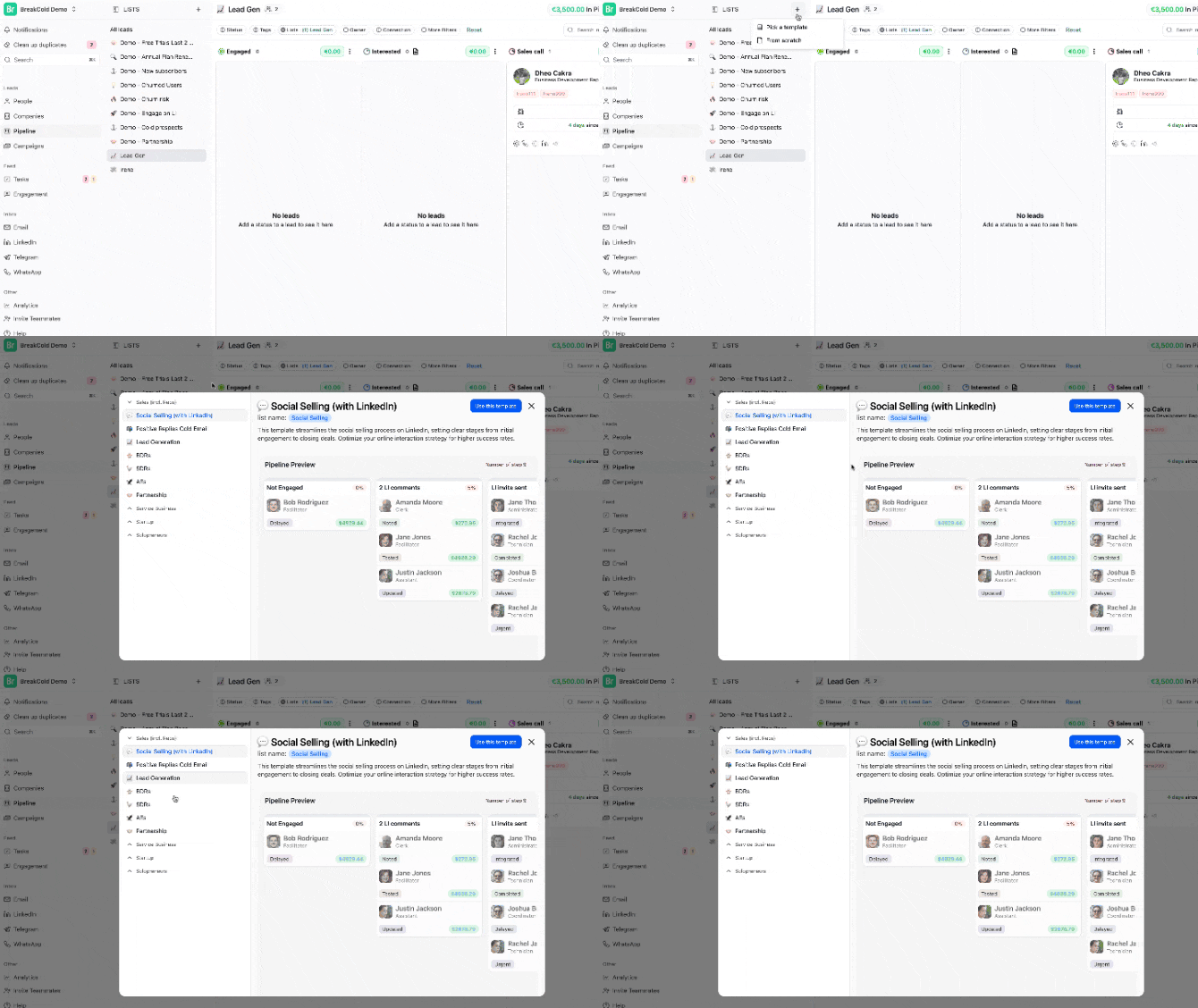
## Create a Sales Pipeline
**Option 1: From Scratch**
* Create a new list → Choose “Start from scratch”
* Go to the pipeline tab and set it up manually
 **Option 2: Use a Template**
* Create a list → Choose a template (22+ options available)
**Option 2: Use a Template**
* Create a list → Choose a template (22+ options available)