> ## Documentation Index
> Fetch the complete documentation index at: https://developer.breakcold.com/llms.txt
> Use this file to discover all available pages before exploring further.
# How can I import custom fields using a CSV file?
> Importing custom fields via CSV is a simple way to update or add detailed information to your lead or contact database.
Importing custom fields via CSV is a simple way to update or add detailed information to your lead or contact database. Follow these steps:
## 1. Prepare Your CSV File
* Create a CSV file with clearly labeled column headers.
* Include both standard fields (e.g., Name, Email) and any custom fields (e.g., *Icebreaker*, *Referral Source*).
## 2. Start the Import Process
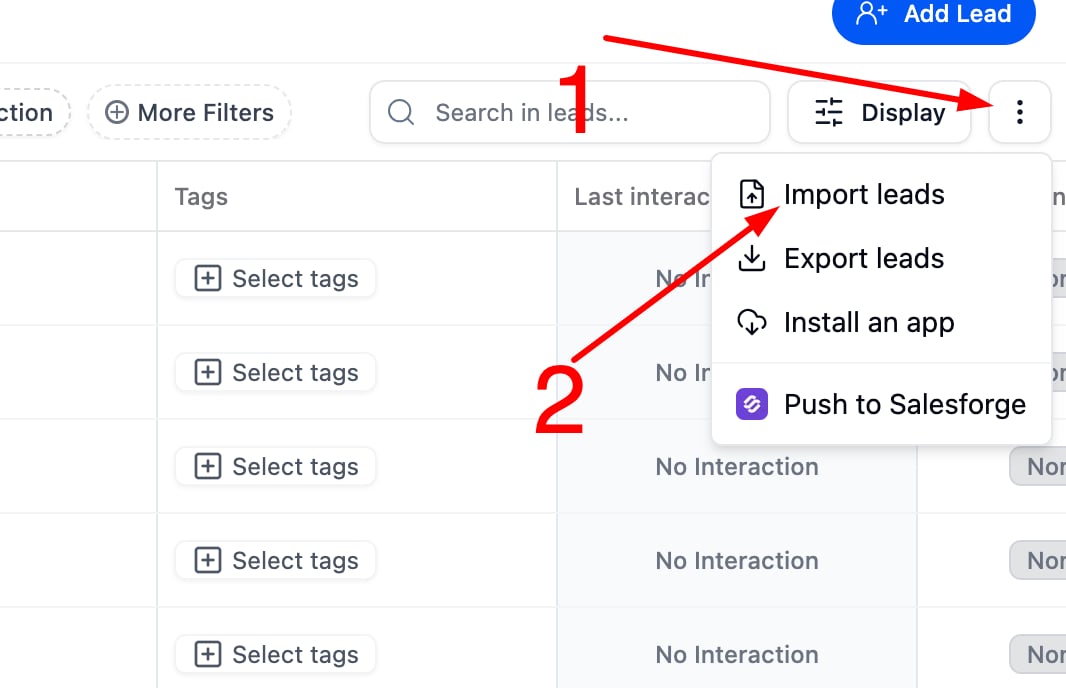
* Go to the import section in your system.
* Upload your CSV file.
 ## 3. Map Your Fields
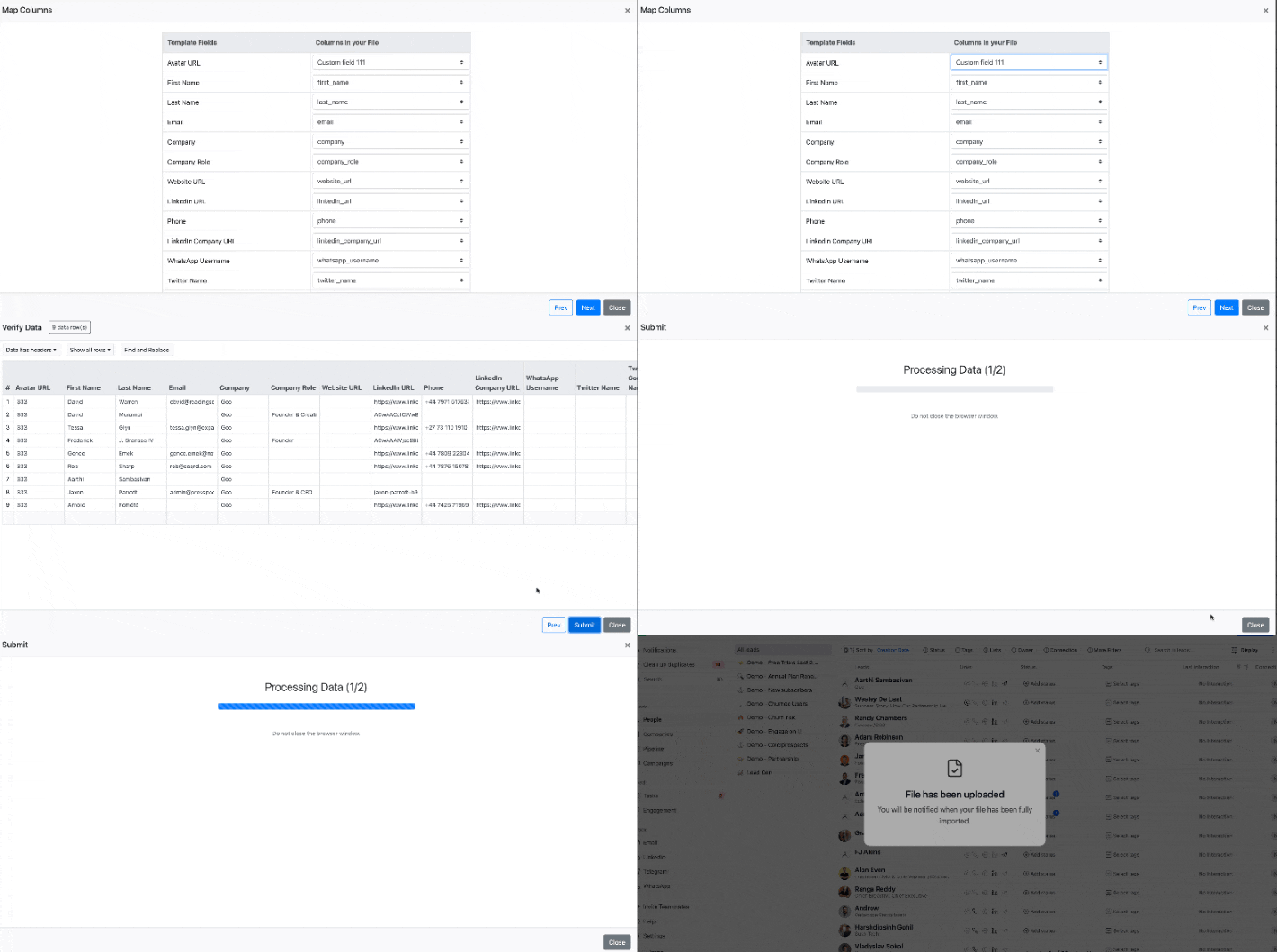
* The system will prompt you to match each CSV column to a corresponding field.
* Ensure all columns, especially custom fields, are mapped correctly.
## 3. Map Your Fields
* The system will prompt you to match each CSV column to a corresponding field.
* Ensure all columns, especially custom fields, are mapped correctly.
 ## 4. Complete the Import
* Review the field mapping.
* Confirm and finalize the import.
## 4. Complete the Import
* Review the field mapping.
* Confirm and finalize the import.