> ## Documentation Index
> Fetch the complete documentation index at: https://developer.breakcold.com/llms.txt
> Use this file to discover all available pages before exploring further.
# How to Create Custom Statuses
> How to Create Custom Statuses Custom statuses help you track where each lead is in your workflow.
## How to Create Custom Statuses
Custom statuses help you track where each lead is in your workflow. Here’s how to create and apply them:
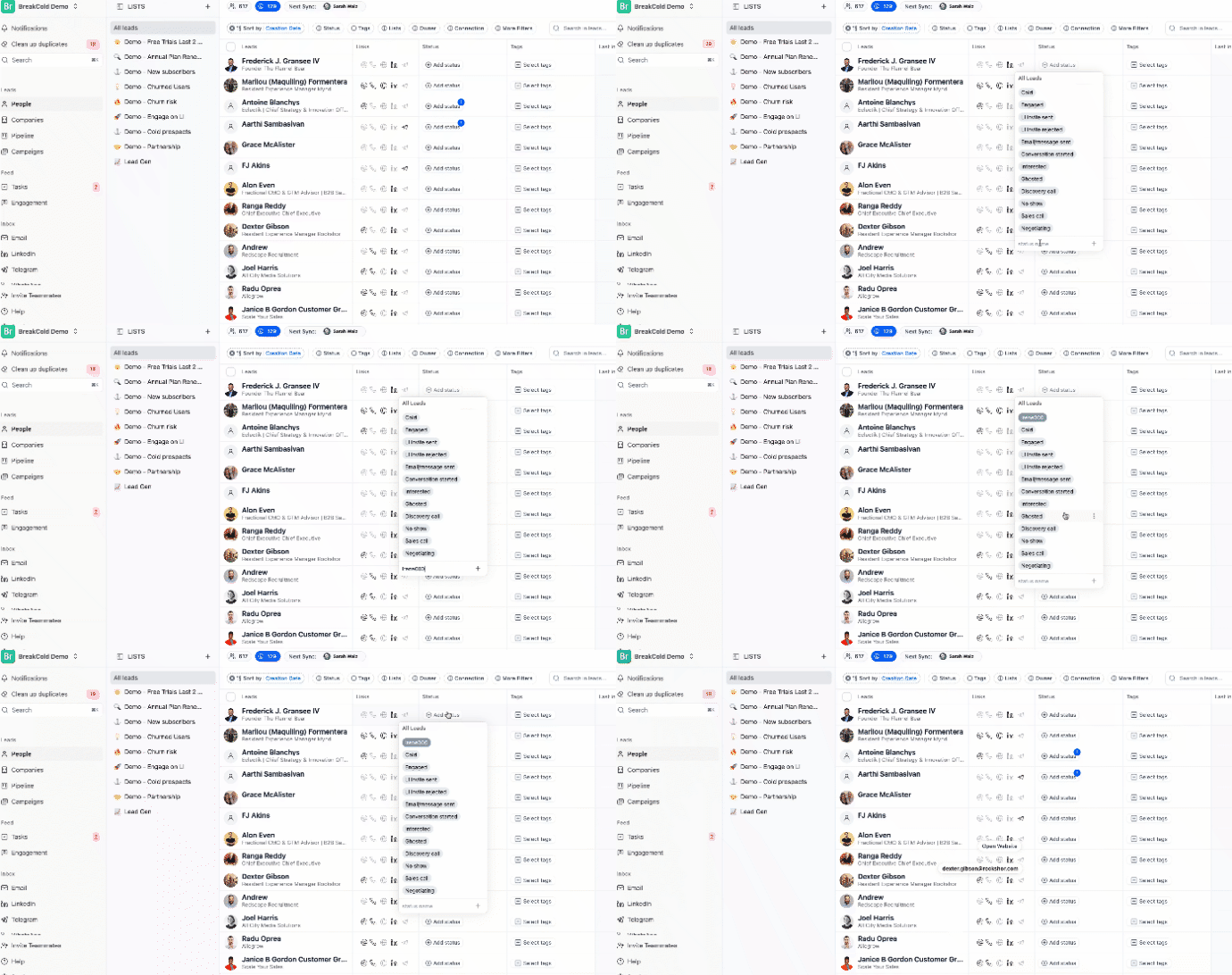
1. Go to the People section.
2. Select a lead.
3. Click on the Status field.
4. Type in a new status, then click the ➕ plus sign.
5. Click enter to save it
 ## To Apply or Create Statuses in Bulk
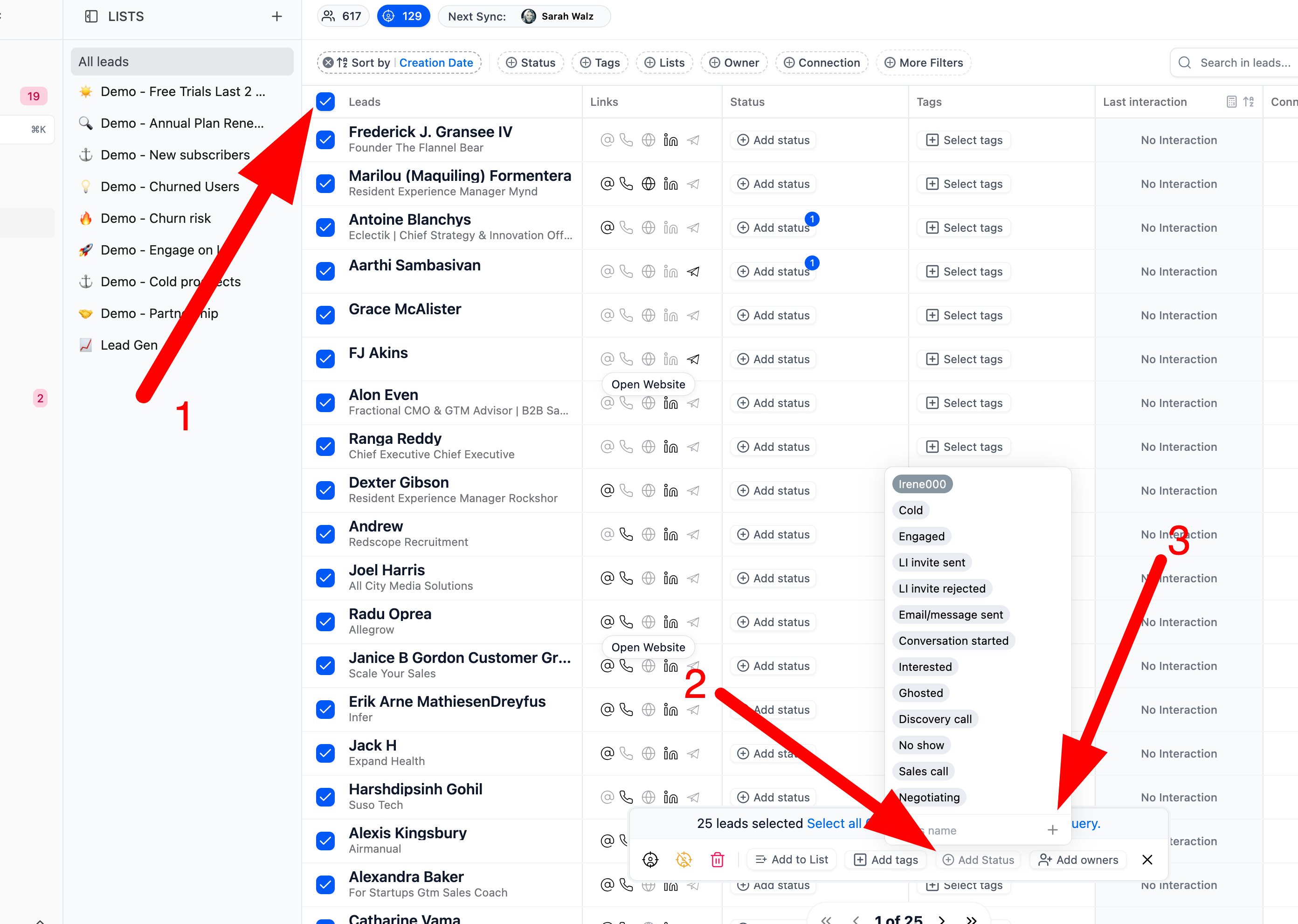
1. Select multiple leads from the list and the bulk action bar will appear.
2. Click on “Add Status”.
3. To create a new status, type it in and click the ➕ plus sign.
## To Apply or Create Statuses in Bulk
1. Select multiple leads from the list and the bulk action bar will appear.
2. Click on “Add Status”.
3. To create a new status, type it in and click the ➕ plus sign.