> ## Documentation Index
> Fetch the complete documentation index at: https://developer.breakcold.com/llms.txt
> Use this file to discover all available pages before exploring further.
# How to Update Your Payment Method
> ⚠️ Important: Any changes made to your payment method or billing information will only apply to future invoices .
⚠️ **Important:** Any changes made to your payment method or billing information will only apply to **future invoices**. We cannot modify or reissue past invoices with updated details.
## Step 1: Go to Billing Settings
1. Log in to your Breakcold account.
2. Click on your **Profile icon** in the top-right corner of the dashboard.
Select
[ ](https://app.breakcold.com/accounts?page=0)
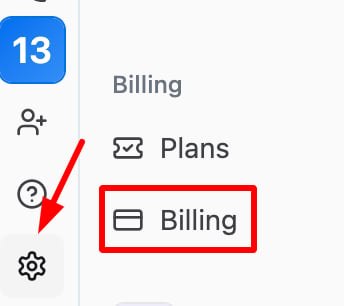
"[Settings](https://app.breakcold.com/accounts?page=0)" from the lower left side panel.
3. In the [Settings](https://app.breakcold.com/accounts?page=0) menu, navigate to the [Billing](https://app.breakcold.com/settings/organization/billing?page=0) [](https://app.breakcold.com/settings/organization/billing?page=0)tab.
](https://app.breakcold.com/accounts?page=0)
"[Settings](https://app.breakcold.com/accounts?page=0)" from the lower left side panel.
3. In the [Settings](https://app.breakcold.com/accounts?page=0) menu, navigate to the [Billing](https://app.breakcold.com/settings/organization/billing?page=0) [](https://app.breakcold.com/settings/organization/billing?page=0)tab.
 ## Step 2: Edit Your Payment Information
1. Under the **Billing** tab, you’ll see a section for **Payment Method**.
2. Click on **"Edit Payment Method"** to update your credit card or payment details.
## Step 3: Enter New Payment Details
1. Add your new payment method (credit card or debit card details).
2. Make sure the billing address and payment details are correct.
3. Click **Save** to update your payment method.
## Step 4: Confirmation
Once updated, you will receive a confirmation that your payment method has been successfully updated. You can view your updated payment details under the **Billing** section.
## Step 2: Edit Your Payment Information
1. Under the **Billing** tab, you’ll see a section for **Payment Method**.
2. Click on **"Edit Payment Method"** to update your credit card or payment details.
## Step 3: Enter New Payment Details
1. Add your new payment method (credit card or debit card details).
2. Make sure the billing address and payment details are correct.
3. Click **Save** to update your payment method.
## Step 4: Confirmation
Once updated, you will receive a confirmation that your payment method has been successfully updated. You can view your updated payment details under the **Billing** section.